Here are my thoughts on how one can start learning UI design.
For a very long time I thought that I don’t need to learn design. Or, more precisely, I thought that I must not learn design, because I’m a specialist, and specialists don’t waste their time on things that are outside of their domain of expertise.
But the thing is, I’m interested in design. As far as I can remember I always loved to draw, and I believe I do have at least some artistic abilities. Also, it seems so cool to be able to design and then develop you own apps from start to finish. Nothing hinders your creativity. You don’t just implement other people’s ideas, you come up with your own ideas, and everything you create is truly yours.
So, I decided to at least try to learn something about design. Maybe I’ll get serious about this design thing one day. And maybe it will not be that bad. Yes, if I do it for real, I might be spreading myself to thinly. But on the other hand, what if I become one of those mythical creatures called unicorn developers? Wouldn’t that be cool?
Learning design is a lot like learning programming
Anyway, for now I’m just learning the basics. More specifically, I decided to learn Photoshop. I have already spent several evenings learning Photoshop, and here is what I have found out.
Learning design is a lot like learning programming. At first I didn’t know where to start, and I thought that maybe I needed to buy a course on Photoshop. But then I decided to take the approach I used for learning programming. And it worked.
First of all you need to learn how to use the tools. To do it you just draw something. And when you try to draw something in Photoshop, you are going to have lots of questions. When you have questions, just Google them. That’s how you learn design. And that’s how I learned programming. There is no need to buy any courses.
What to draw? Don’t try to create at first. Just copy. I believe it is very important, and here is why. If you try to create something as a beginner, you creativity will be hindered by you lack of ability. So you will end up producing something too simple and too ugly. You might have a great vision inside your head, but then you will have to simplify it and distort it to match your limited abilities.
On the other hand, if you just forget about creativity for a while, and concentrate on copying stuff, that will enable you to develop your abilities. This way you know exactly what you are trying to achieve, and you just do whatever it takes to recreate someone else’s design. Your newly developed skills will let you be creative later.
The best way to start with this approach is to go through some tutorials. Here are the tutorials I used.
Tutorial 1. Tutorial 2. Tutorial 3.
And this is just one example of what I ended up with:
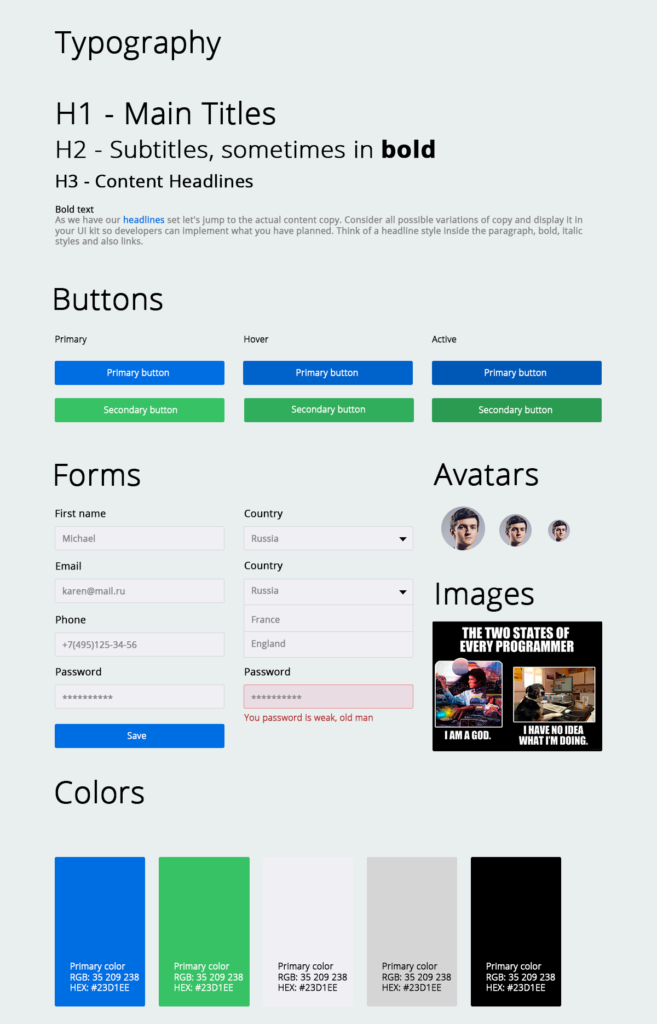
Tutorials are good, because they tell you in great detail, what you should do. I think it is the best way to learn different tools in Photoshop.
I plan on going through a couple more tutorials. Then, the next step is to find a design that I like and try to copy it. This time without a tutorial. Then I will do it for many times for different designs.
Notice, how it is exactly the same as learning programming. In programming you too go through a bunch of tutorials at first. Then you create a bunch of your own apps. Only after that you read books and go through courses.
Other things I discovered
When it comes to mechanical skills of a designer (like ability to use Photoshop) I believe they can be all divided into two big areas.
One is all about rectangles and texts. Seriously, while going through the tutorials, that was all I was doing: drawing rectangles and texts. Now, when we talk about text, there is this thing called typography which is an entire field of knowledge in its own right, and there is a lot I can learn there. But for now I like to think about texts and rectangles as being two parts of one skill set which is all about placing stuff on the screen.
Note, that here I’m only talking about the mechanics of design process. There is a difference between knowing how to place stuff on the screen and knowing where to place stuff on the screen. I’m not even starting to think about learning the latter part just yet.
The second area (or a skill set) is all about illustrations. This one I haven’t yet started to learn. But I think it can be learned the same way, through tutorials. In this case the tutorials don’t need to be necessarily focused on UI design. They can be more general and focused on little things, like, for instance, how to draw a semicircle, or a sector. Stuff like that. Also I know that designers like to use other people’s artwork when it comes to icons, so maybe learning how to do illustrations is not that crucial for a UI designer.
There is also a funny little thing I have learned. Usually, when designers give me their designs so that I can start developing an app, I often notice that they misspell words. Like all the time. And over time that lead me to believe that maybe designers as a species are sort of not very bright people, to put it mildly.
Now, when I started learning Photoshop I discovered the real reason for designers’ ‘illiteracy’. It turned out that Photoshop doesn’t have a spell checking capability (or at least I haven’t found one). BTW, can you find a typo in the picture in this post? I didn’t make it on purpose.